

What Is the Add Percentage Calculator?
This calculator adds a chosen percentage to a base number and shows both the amount added and the new total. It is useful for marking up prices, applying a tip, adding tax or interest, raising a salary, or scaling up a quantity. The math is universal and works with any currency or unit.
How to Use It
Enter the Base Value (the starting number) and the Percentage to Add. The calculator returns the increased result along with the exact amount that was added so you can see the breakdown.
The Formula Explained
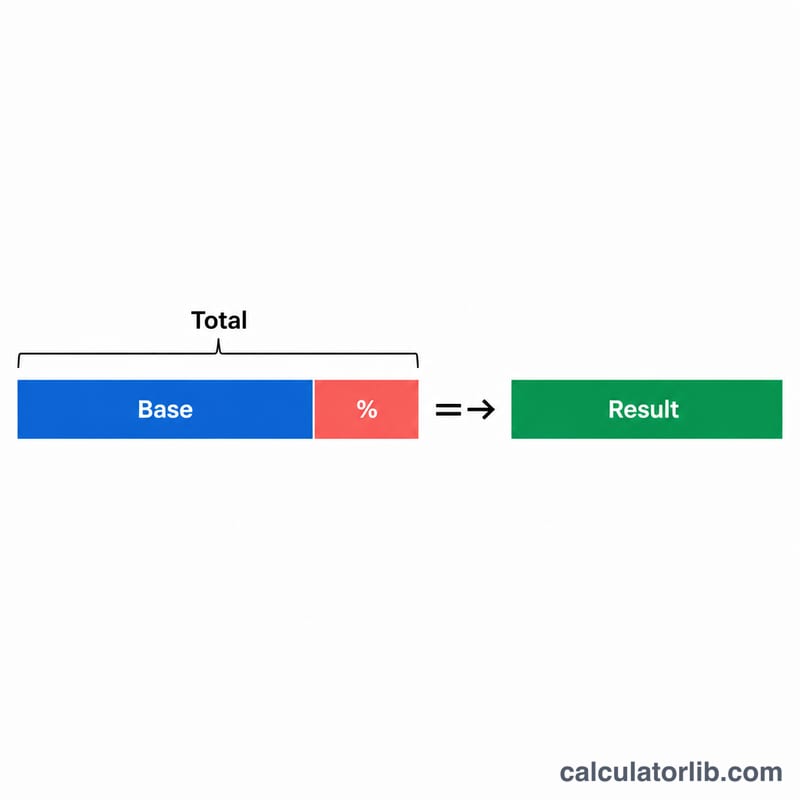
The core formula is $$\text{Result} = \text{Base} + \left(\text{Base} \times \dfrac{\text{Percent}}{100}\right)$$ which is equivalent to $$\text{Result} = \text{Base} \times \left(1 + \dfrac{\text{Percent}}{100}\right)$$ First the percentage is converted to a decimal by dividing by 100, then it is multiplied by the base to find the amount added, and finally that amount is added back to the base.
Worked Example
Suppose a product costs 200 and you want to add a 15% markup. The amount added is $$200 \times 15 \div 100 = 30$$ The final result is $$200 + 30 = 230$$ So adding 15% to 200 gives 230.
Common Add-Percentage Scenarios
Adding a percentage to a base value follows the formula \(\text{Result} = \text{Base} \times \left(1 + \frac{\text{Percent}}{100}\right)\). The amount added is simply \(\text{Base} \times \frac{\text{Percent}}{100}\), and the final result is the base plus that amount. The table below shows everyday situations where you increase a number by a percent.
| Scenario | Base | Percent | Amount added | Final result |
|---|---|---|---|---|
| 15% tip on a restaurant bill | 50 | 15% | 7.50 | 57.50 |
| 8% sales tax on a purchase | 200 | 8% | 16.00 | 216.00 |
| 20% markup on product cost | 1000 | 20% | 200.00 | 1200.00 |
| 3% annual salary raise | 60000 | 3% | 1800.00 | 61800.00 |
| 5% restocking surcharge | 120 | 5% | 6.00 | 126.00 |
| 10% gratuity on catering | 850 | 10% | 85.00 | 935.00 |
For a quick gratuity check, the 15% tip on a 50 bill matches the 57.50 total from a dedicated tip calculator.
More Worked Examples
Each example below shows the full substitution into \(\text{Result} = \text{Base} \times \left(1 + \frac{\text{Percent}}{100}\right)\) so the arithmetic is easy to verify.
Example 1 — Adding 7.25% sales tax to a price
A shopper buys an item priced at 875 in a region with a 7.25% sales tax rate.
- Amount added: \(875 \times \frac{7.25}{100} = 875 \times 0.0725 = 63.4375\)
- Final result: \(875 \times \left(1 + \frac{7.25}{100}\right) = 875 \times 1.0725 = 938.44\) (rounded to cents)
The tax-inclusive total is 938.44.
Example 2 — Adding an 18% tip to a dinner bill
A dinner costs 64.50 and you want to add an 18% tip.
- Tip added: \(64.50 \times \frac{18}{100} = 64.50 \times 0.18 = 11.61\)
- Final result: \(64.50 \times \left(1 + \frac{18}{100}\right) = 64.50 \times 1.18 = 76.11\)
So you would pay 76.11 in total.
Example 3 — Using a negative percent to decrease a value
The same formula handles a decrease when the percent is negative. Suppose a 250 item is reduced by 12% (enter percent as \(-12\)).
- Amount changed: \(250 \times \frac{-12}{100} = 250 \times (-0.12) = -30\)
- Final result: \(250 \times \left(1 + \frac{-12}{100}\right) = 250 \times 0.88 = 220\)
The negative sign turns the addition into a subtraction, giving a discounted price of 220.
FAQ
Can I use this for sales tax? Yes. Enter the pre-tax price as the base and the tax rate as the percent; the result is the total including tax.
How do I decrease instead of increase? Use a negative percentage, such as \(-10\), to subtract a percentage instead of adding it.
What does "amount added" mean? It is the raw value of the percentage portion — the difference between the result and the base.