

How the alarm works
Pick a time, or tap one of the quick buttons for a nap or a short reminder, then press Set alarm. The page counts down from the alarm's own timestamp, so the time stays right even when the browser slows down a background tab, and the alarm rings the moment the page can run again.
Several alarms, weekdays and snooze
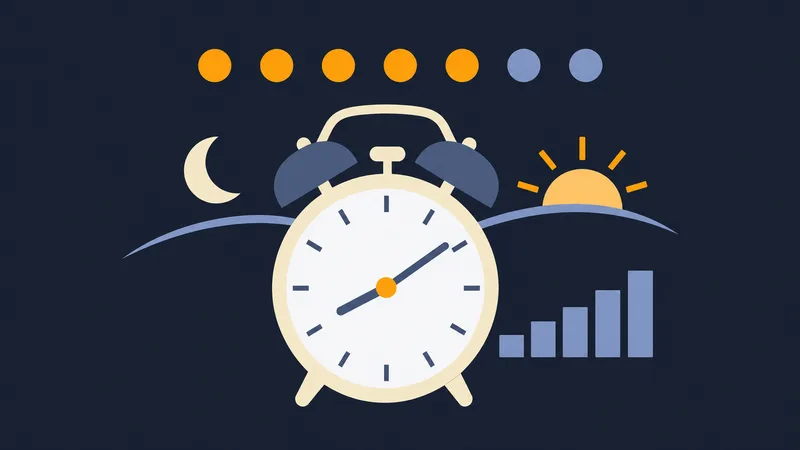
Add as many alarms as you need, up to 12. Pick the weekdays an alarm repeats on (Mon–Fri for work, weekends only or every day) or leave them all off for a one-time alarm; each alarm has its own on/off switch. When it rings, press Stop, or Snooze for the length you chose (5 to 30 minutes). Gradually louder starts quietly and rises to your volume over about 20 seconds.
Sound and notifications in your browser
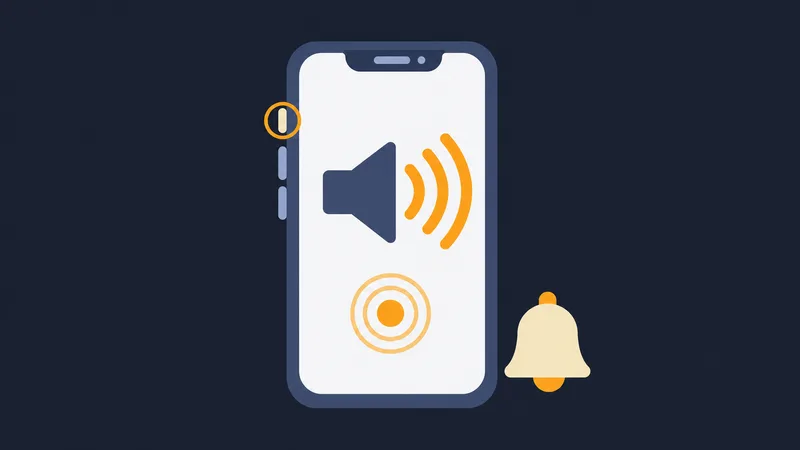
The ring is a sound made in your browser, so nothing is downloaded. Browsers play sound only after you have clicked or pressed a key on the page, and pressing Start or Set already counts. After a reload, if the browser is still holding sound back, the page shows a Tap to turn sound on button: one tap is enough. On an iPhone the ring plays even with the ring/silent switch on silent; just turn the volume up. Play sound lets you hear the chosen tone first.
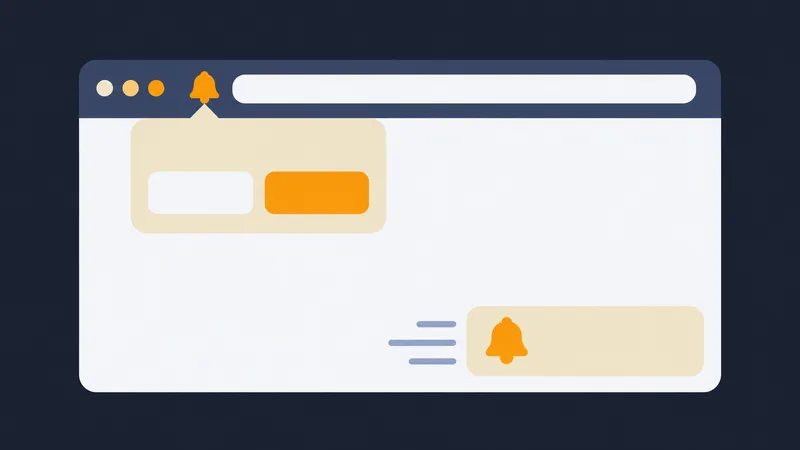
Turn on Show a notification to get a system notification when time is up, even while you are in another tab or app. Beside the switch the page says whether notifications are allowed, not allowed yet or blocked. If they are blocked:
- Chrome and Edge: click the icon at the left of the address bar, set Notifications to Allow, then reload the page.
- Firefox: click the icon at the left of the address bar, clear the blocked notification permission, then turn the switch on again.
- Safari on a Mac: Safari, Settings, Websites, Notifications, then Allow for this site.
- iPhone and iPad: notifications work only for a site added to the Home Screen (Share, Add to Home Screen) and opened from that icon.
- Still nothing? Check that the system allows notifications for your browser (macOS: System Settings, Notifications; Windows: Settings, System, Notifications) and that Do Not Disturb or Focus is off.
Keep the tab open and the device awake. If the browser suspends the tab (battery saver, a phone locked in your pocket) or the device sleeps, no web page can ring until you come back; it then rings at once and says how late it is. Keep the screen on helps on phones and tablets.
FAQ
Does the alarm ring if I switch tabs? Yes. Keep the tab open and the computer awake; a laptop that goes to sleep cannot play sound until it wakes up, and the page then tells you how late the alarm is.
Is my alarm saved? On this device only. It is still set after a reload and is never sent to a server.
Can I get a notification? Yes. Turn on Show a notification and allow it when the browser asks; nothing is asked until you turn it on. The page shows the permission state and what to do if it is blocked.